Network visualization board
Interactive operations to apply various analysis on the network
Now we focus on the functions of network visualization board. You can hover on this icon  on the top for a quick help of shortcuts.
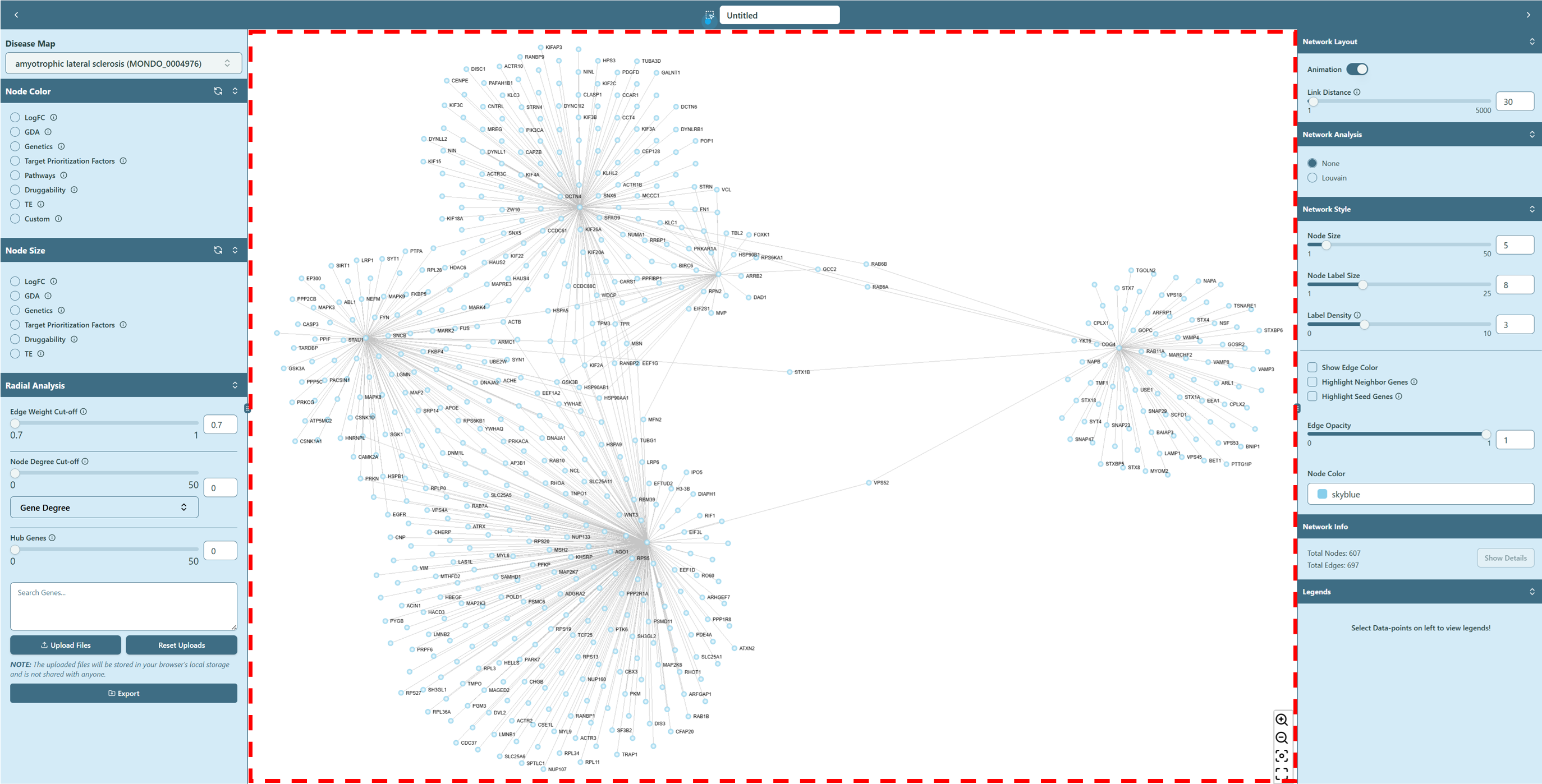 Network visualization board
Network Export
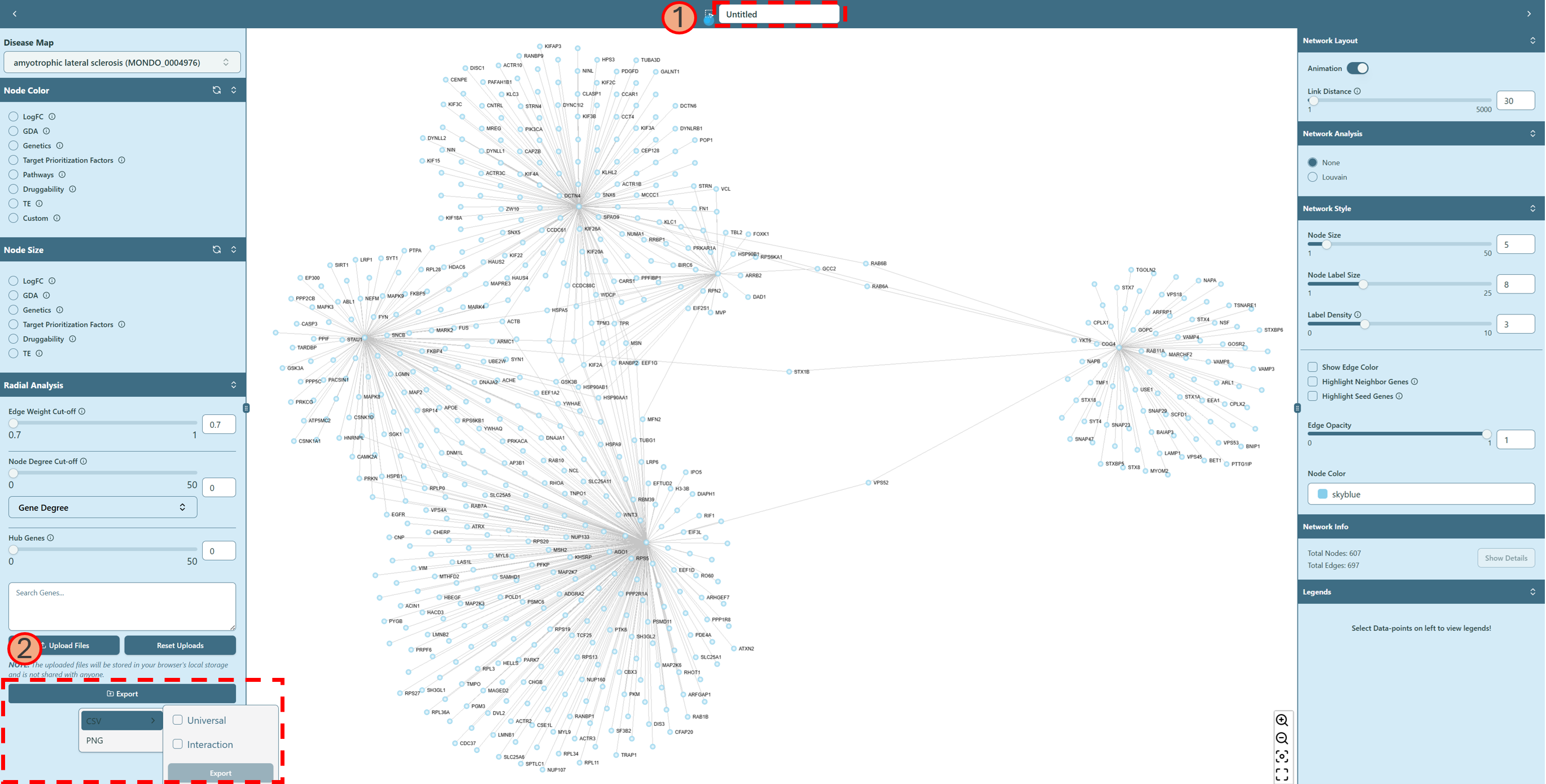
You can export the network you created.
- Type in the name of your saved network.
- Click “Export” button and select proper format. You can export the network in two formats: CSV and PNG.
- CSV: This is a comma-separated-values file that contains the network data, which can be used for further analysis or visualization in other tools. We offer two types of CSV files:
- Universal: This file contains the nodes (genes) of the network, including Ensembl ID, gene name, and gene description.
- Interaction: This file contains the edges (interactions) of the network, including the connected 2 genes and their interaction score.
- PNG: This is a static image of the network, which can be used for presentations or reports.
- CSV: This is a comma-separated-values file that contains the network data, which can be used for further analysis or visualization in other tools. We offer two types of CSV files:
 Network export
Network Parameters
On the right bottom corner of network visualization board, we have four different parameters to help you visualize the network better.
-
 : zoom in the network
 -
 : zoom out the network
 -
 : center the network
 -
 : make the network visualization board full screen
Node Details & GSEA
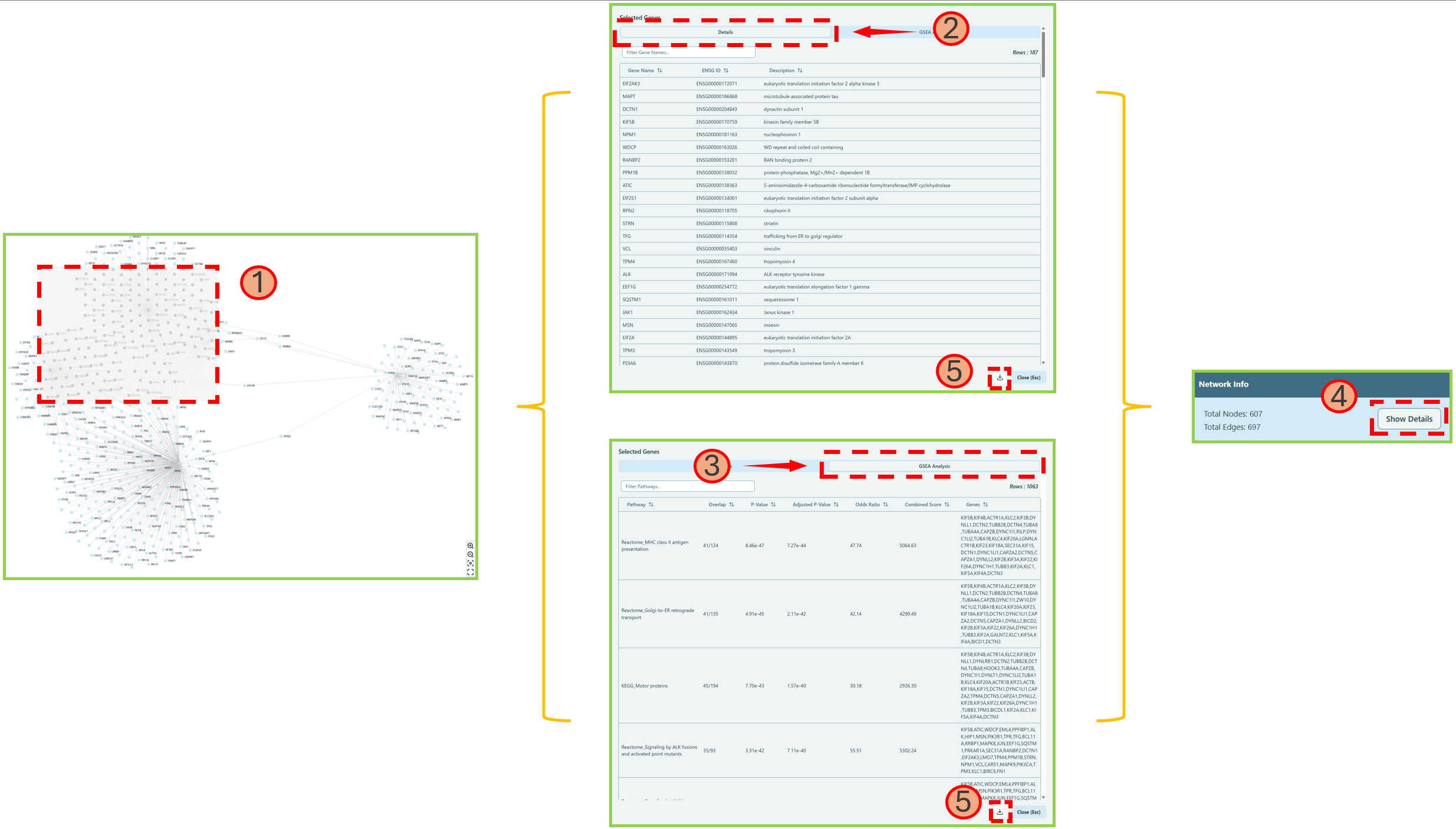
You can check the node details and perform GSEA (Gene Set Enrichment Analysis) on the network visualization board. Here is a help video for GSEA.
- Press
Shift + Click Left Mouse& drag to select nodes on the network, and the selected nodes will be highlighted with black circle. - Click Details tab to obtain the detailed information of selected nodes.
- Click GSEA Analysis tab to obtain the more detailed information of GSEA Analysis Results.
- Navigate to Network Info section of Right panel, click Show Details button to get back to the Node details and GSEA Analysis result window.
- If needed, click download button in the window to export the results.
 Node Details and GSEA